Custom Domains & SSL
Custom domains require a paid plan. On the free tier, your application is accessible via a *.applikuapp.com subdomain only. See Billing & Plans for details.
Every application deployed with Appliku automatically receives a subdomain at YOUR_APP_NAME.applikuapp.com. To use your own domain, follow the steps below.
Step 1: Configure DNS Records
You need to point your domain to the IP address of the server where your application is running.
In this guide we use Namecheap as a registrar and Hetzner DNS, but you can use any registrar and DNS provider.
Find your domain in your registrar
Go to your domain registrar (e.g., Namecheap) and find the domain you want to use.

A domain needs to be associated with a DNS service by setting DNS records.
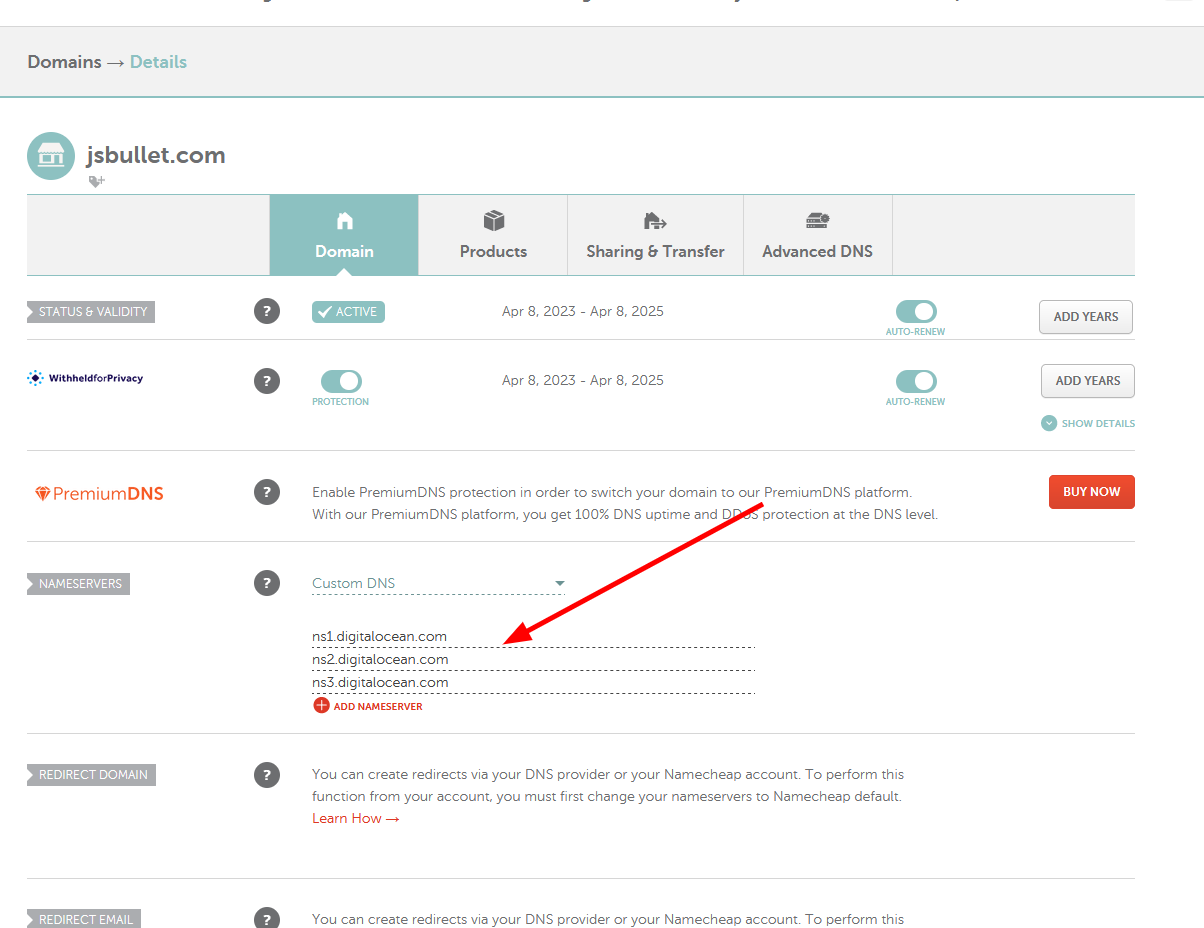
Set up DNS hosting
If you're using Hetzner DNS, go to the Hetzner DNS dashboard and click "Add new zone".

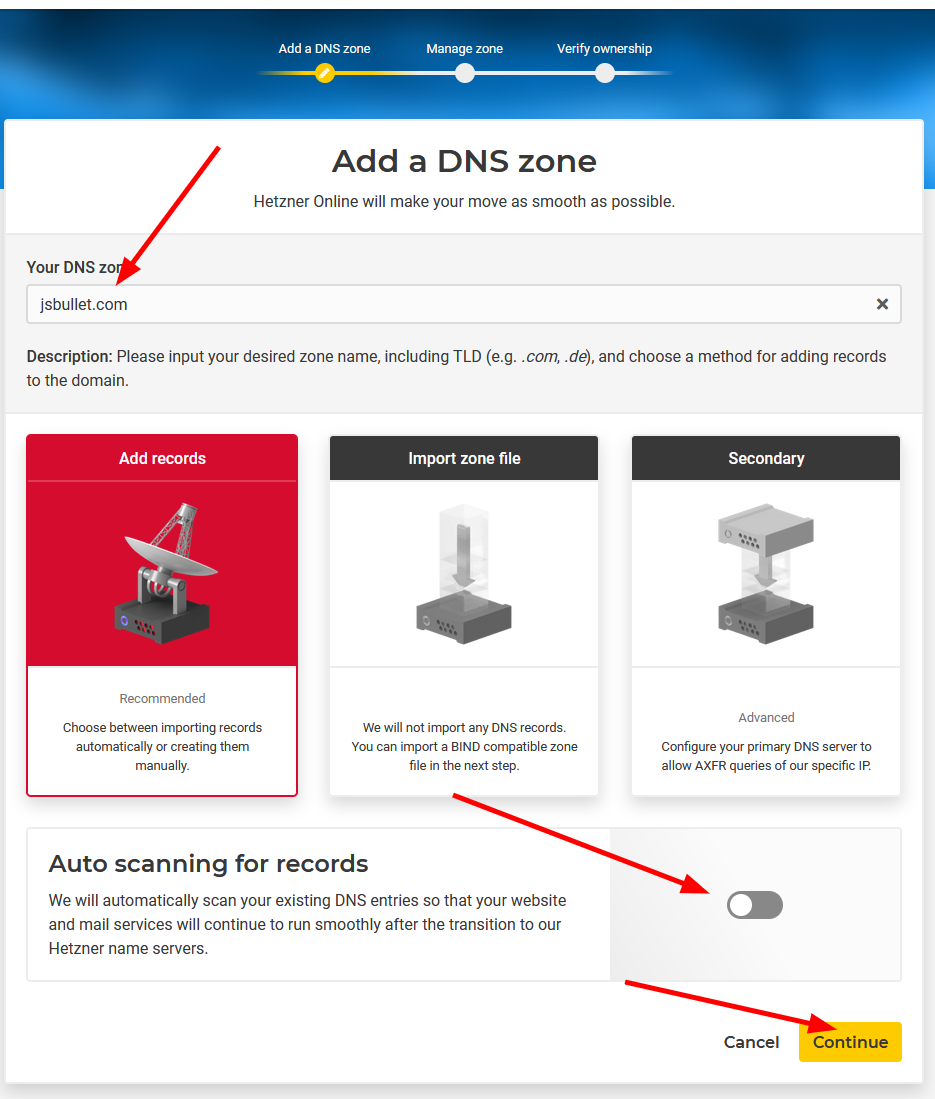
- Enter the domain name
- Turn off auto scanning for records (optionally)
- Click "Continue"
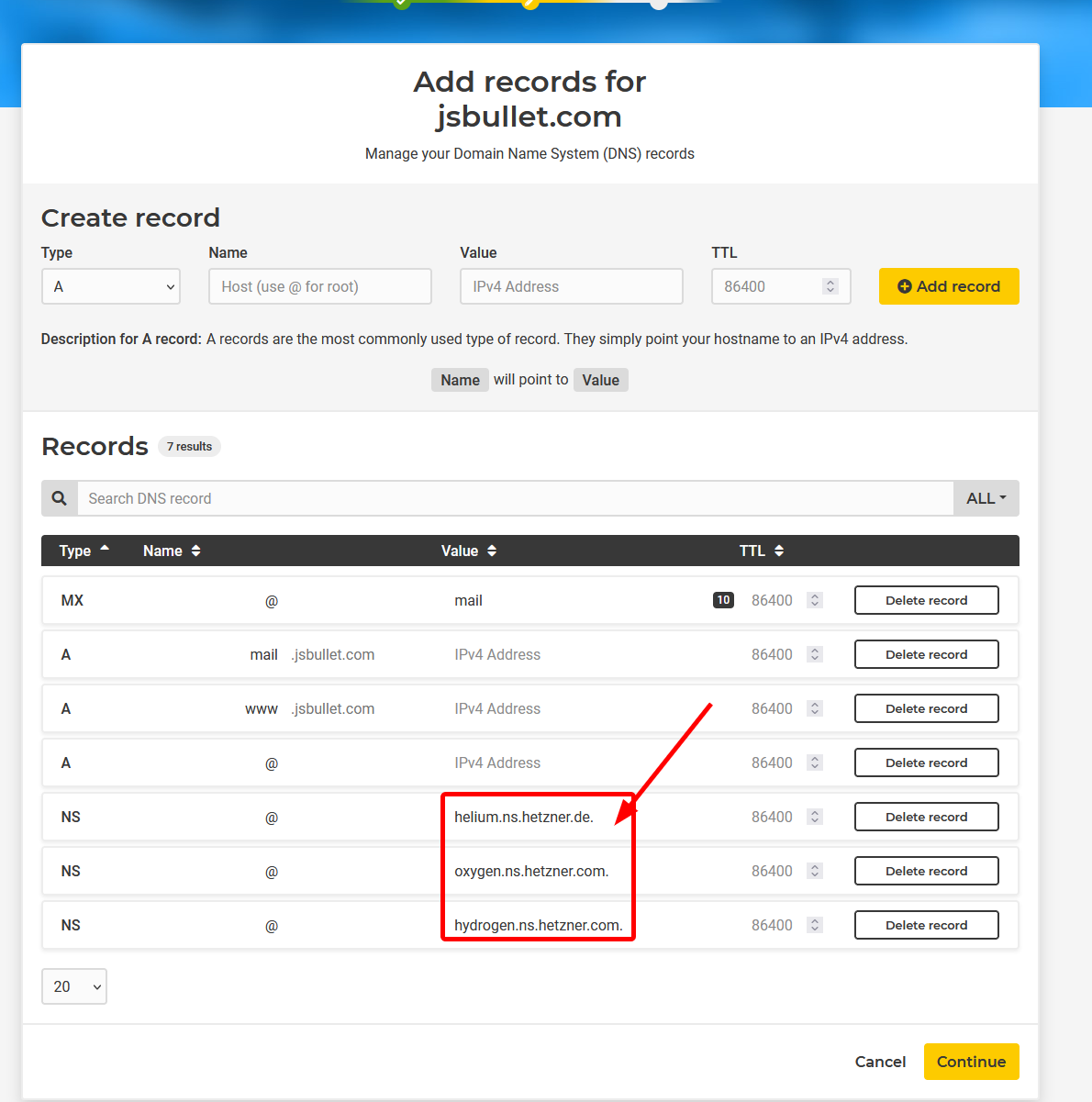
Get the NS records and set them for this domain in the Namecheap dashboard. When done, click the green checkbox to confirm the change.
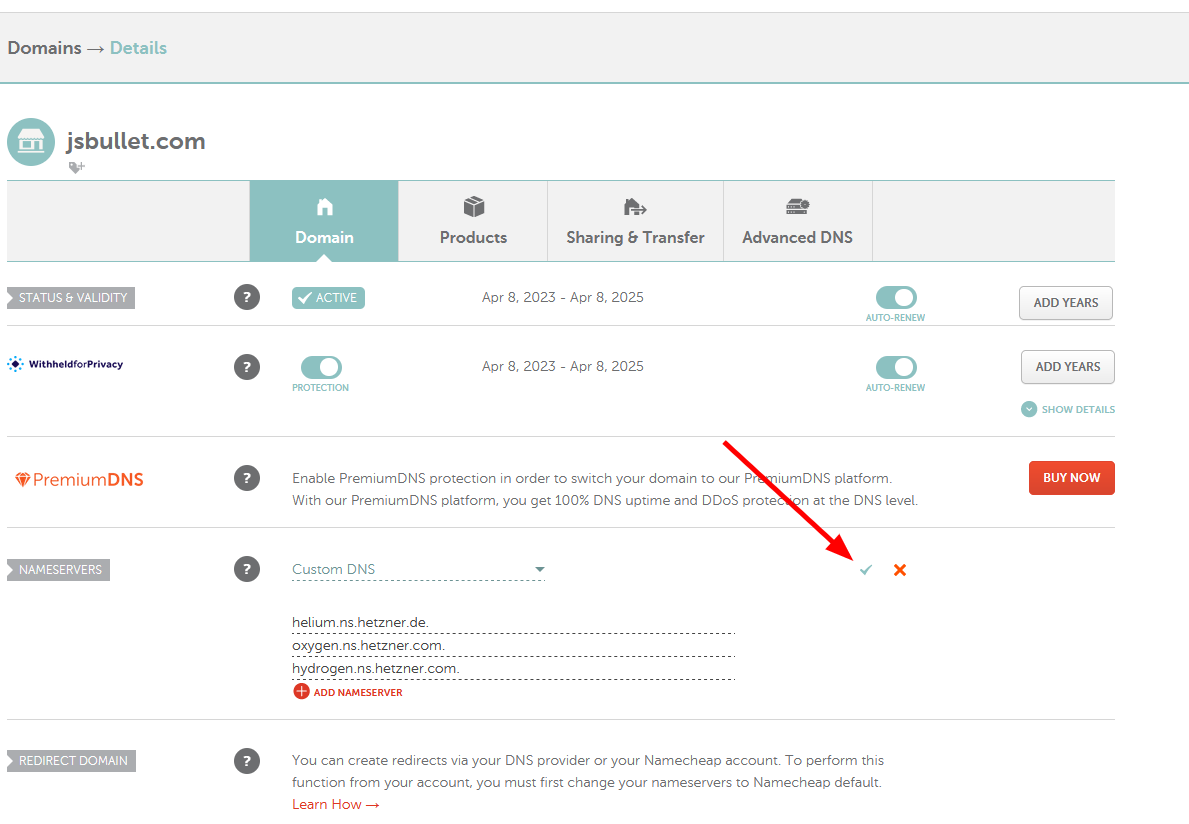
After you save it, it can take a while (from a few minutes up to 24 hours) for changes to take effect.
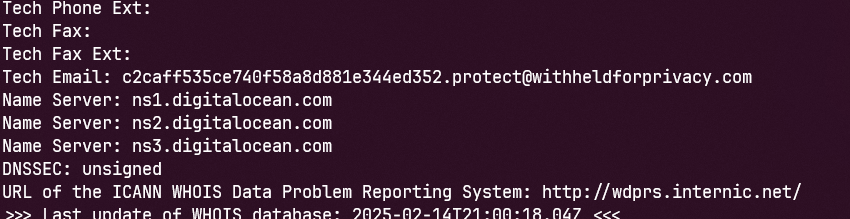
You can use the command whois yourdomain.com in your terminal to find out if Name Server records have changed.
Step 2: Create an A Record
Go to your application in Appliku, then to "Application Settings" → "Domains" tab.
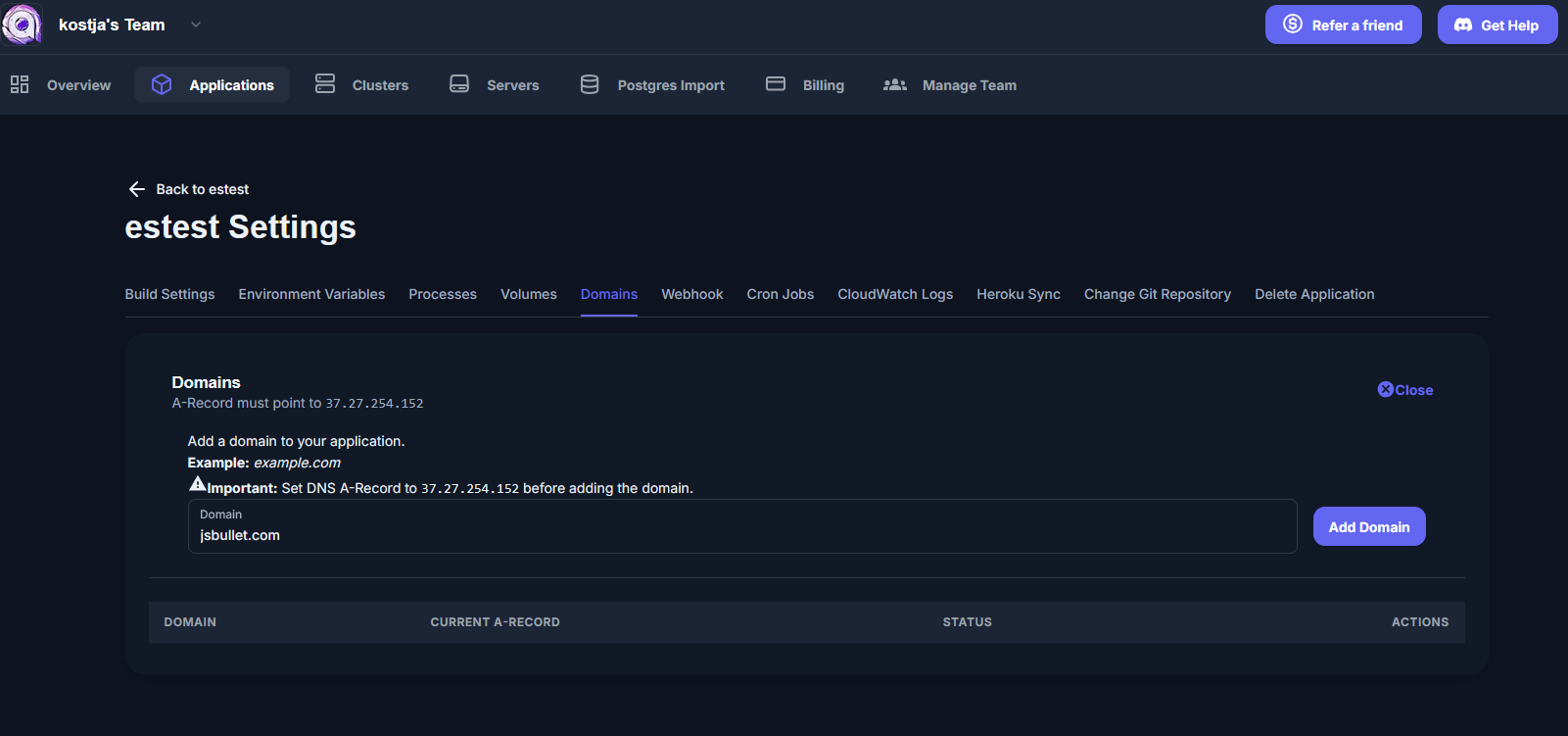
It shows the IP of the server. Copy this IP and go to your DNS dashboard.
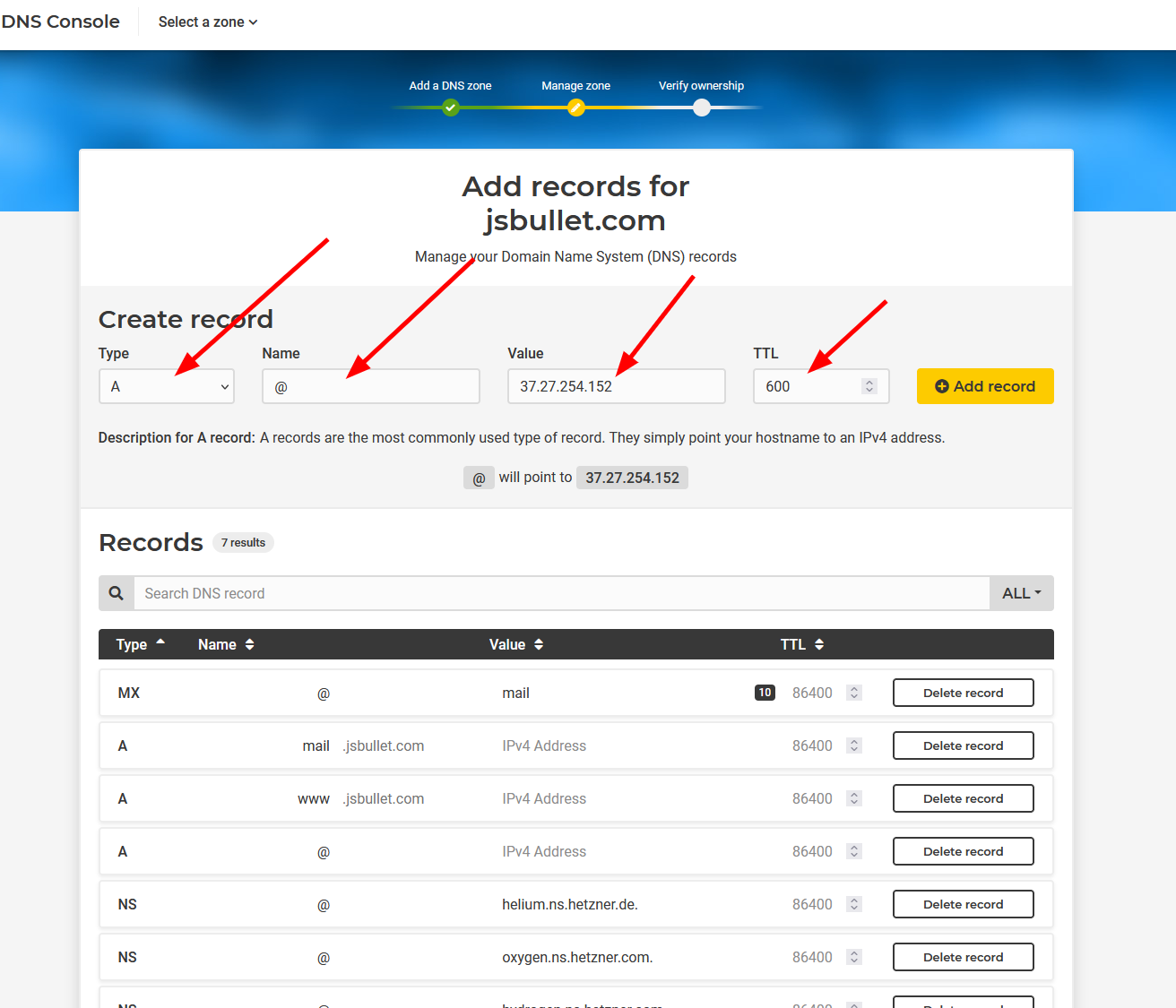
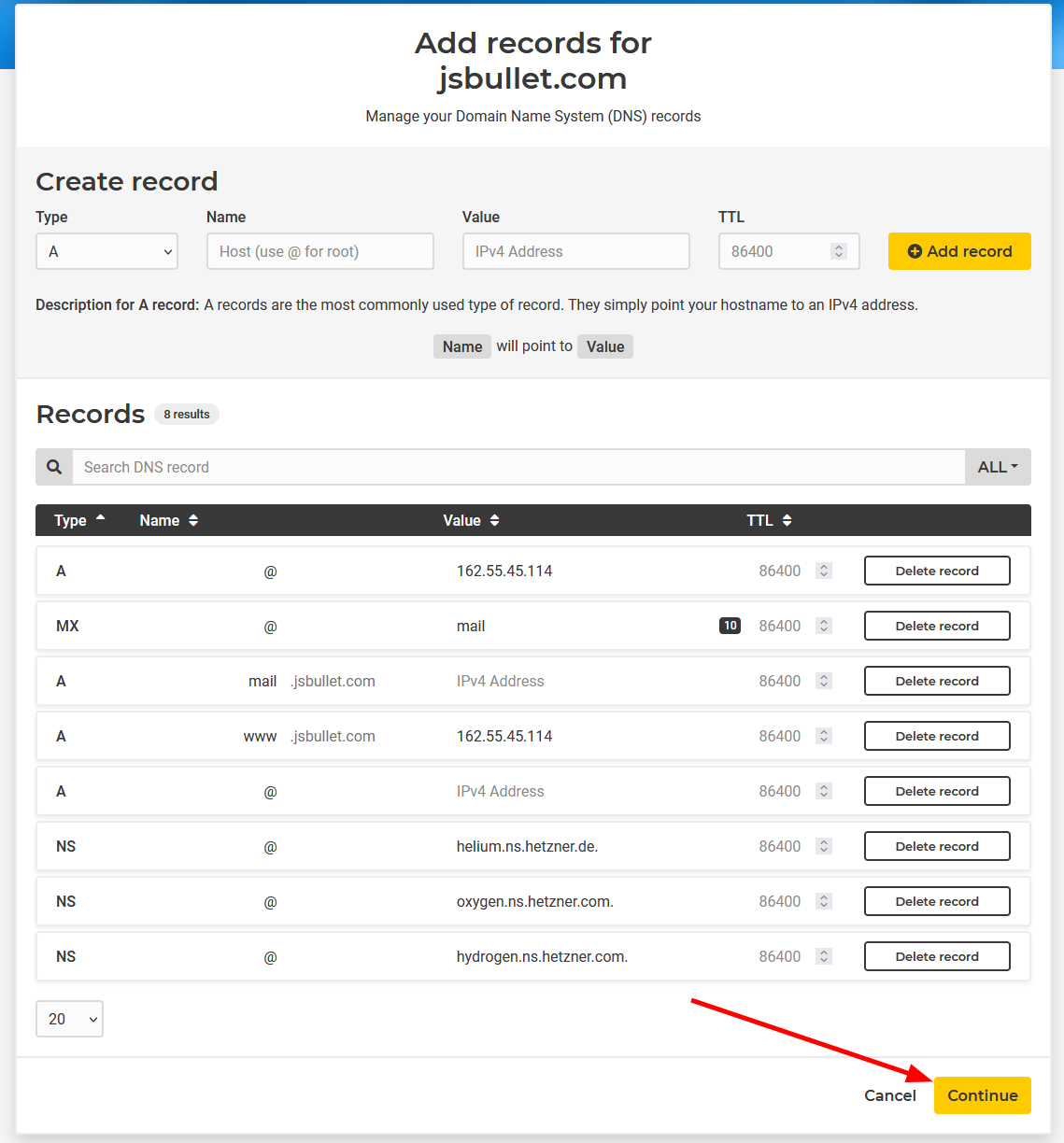
Create an A record with this IP:
- Set a low TTL value (e.g., 600 seconds)
- Name should be
@if you want to use the root domain (e.g.,yourdomain.com)
For a subdomain, use the subdomain name instead (e.g., www for www.yourdomain.com).
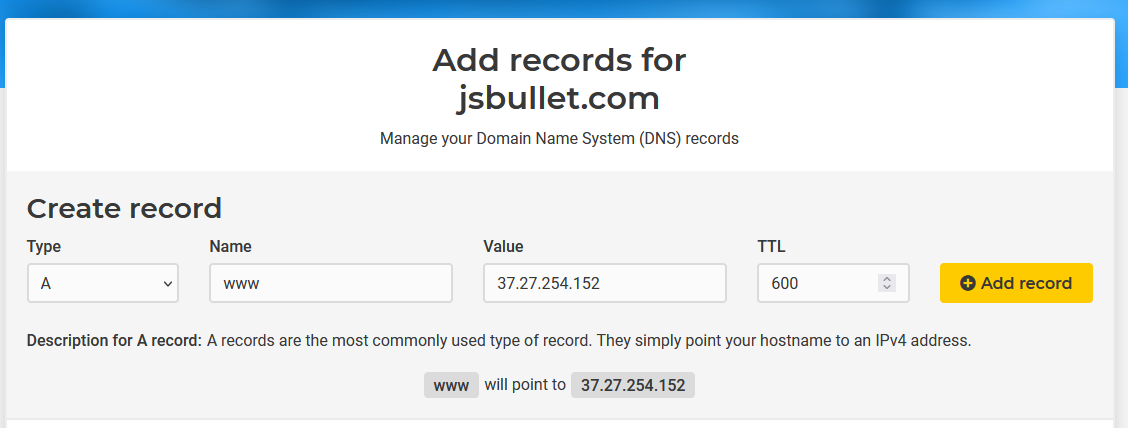
After you have added your records, click Continue.
Step 3: Add Domain in Appliku
Going back to the Appliku dashboard, click "Add domain".
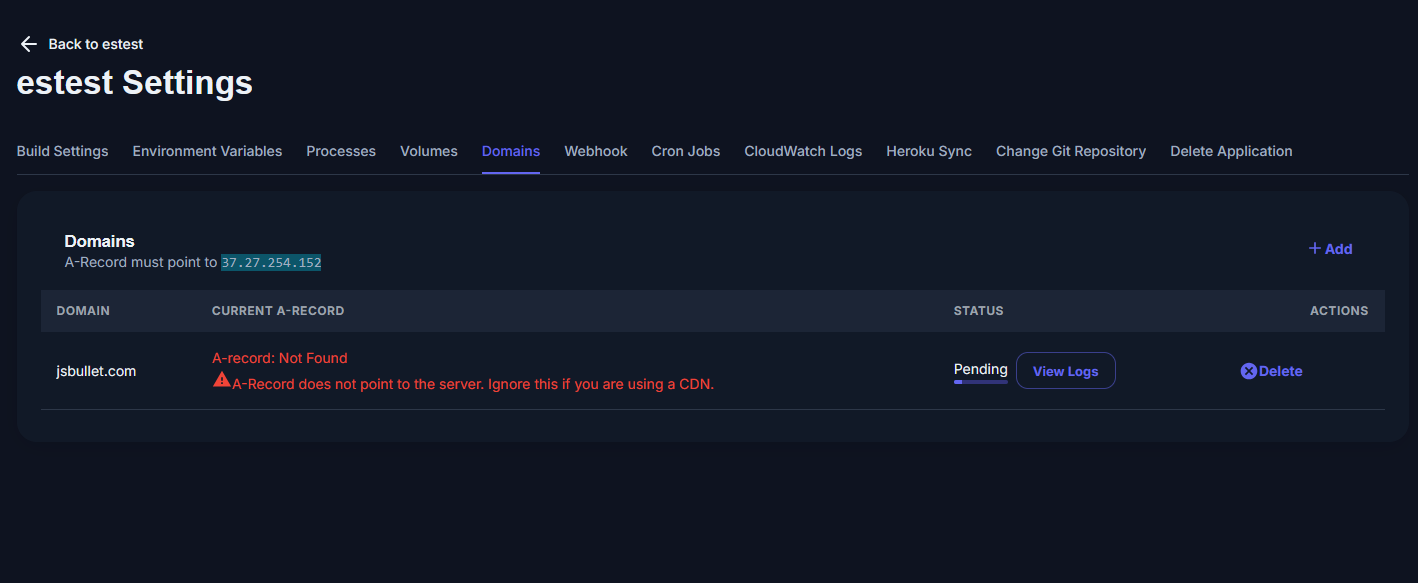
If NS records haven't propagated yet, it will give an error. Appliku will NOT retry adding the domain automatically. You need to delete the domain from the application and try again later, in a few hours.
When NS records are finally updated you will see the new records in the whois output:

Now add your domain to the application.
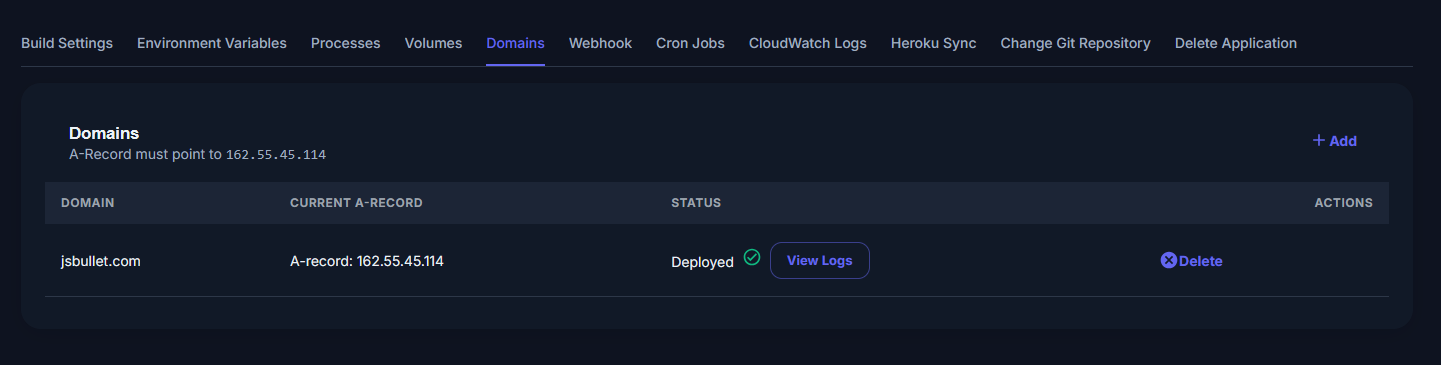
Appliku will automatically provision a Let's Encrypt SSL certificate for your custom domain.