Managing Processes
When you have just created an app in Appliku you must specify what commands to execute to run it.
We call these commands "Processes".
When an app is just created there are no processes and you see a warning on the right side of the application overview page.

Managing Processes in Standalone Mode
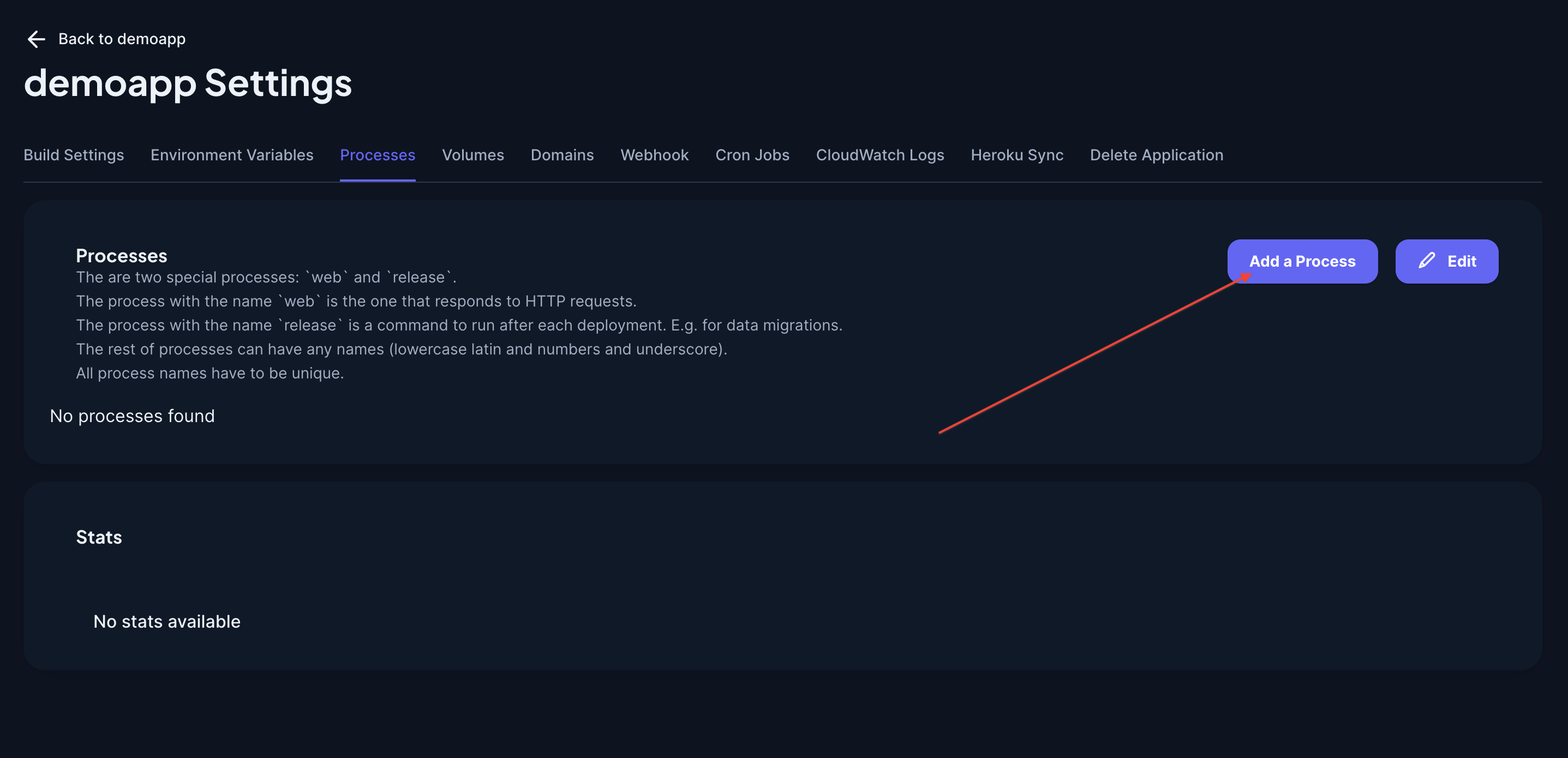
Click on the "Add Processes" button (or the "Manage" link in the "Processes" block).
You will be brought to the application settings page on "Processes" tab.
Click on "Add a Process" button.
Every process you add must have a name, a command to be executed and the state (you can turn it on or off).
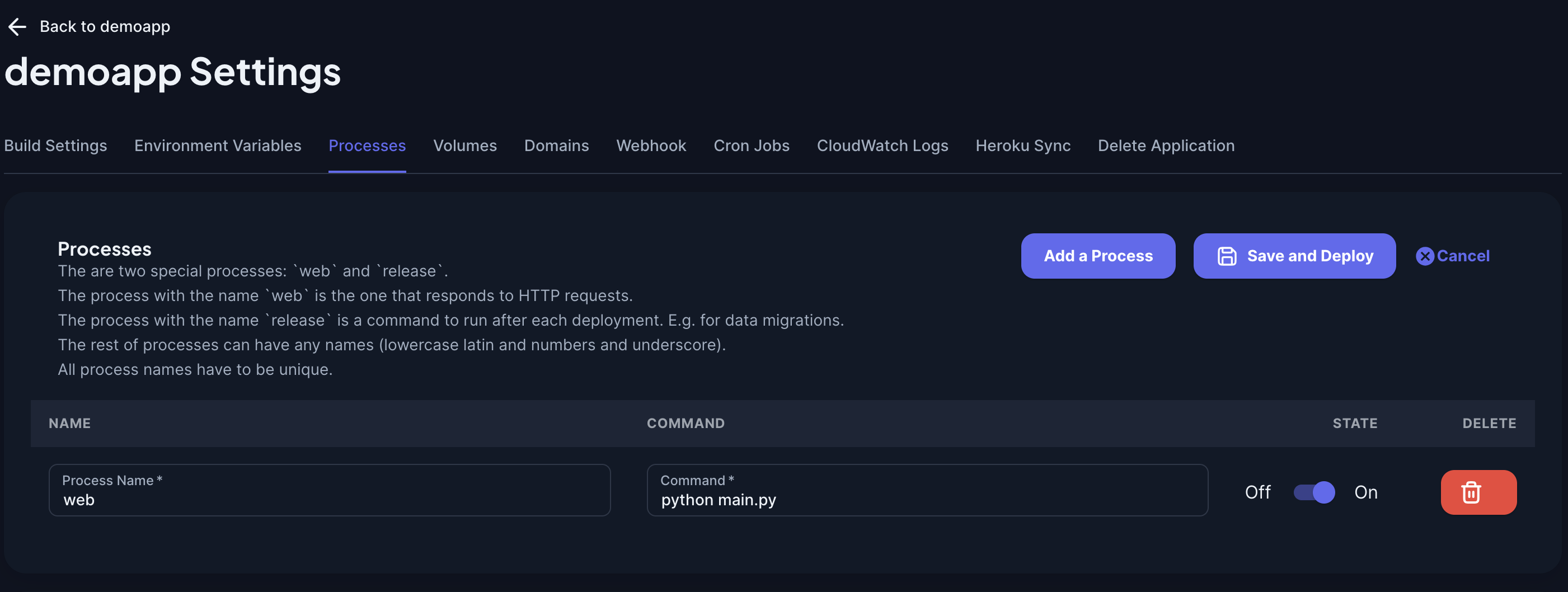
There are two reserved process names: web and release.
- The web is used to specify the process that responds to HTTP requests
- The release one is what to be executed after every successful deployment
Other processes can have any other name, but names must be unique.
The On/Off switch is not available for the "release" process.
Under the hood, processes that you have enabled will be used to assemble docker-compose.yml file to run your app.
For this reason, process name must consist of latin characters, numbers, and underscores.
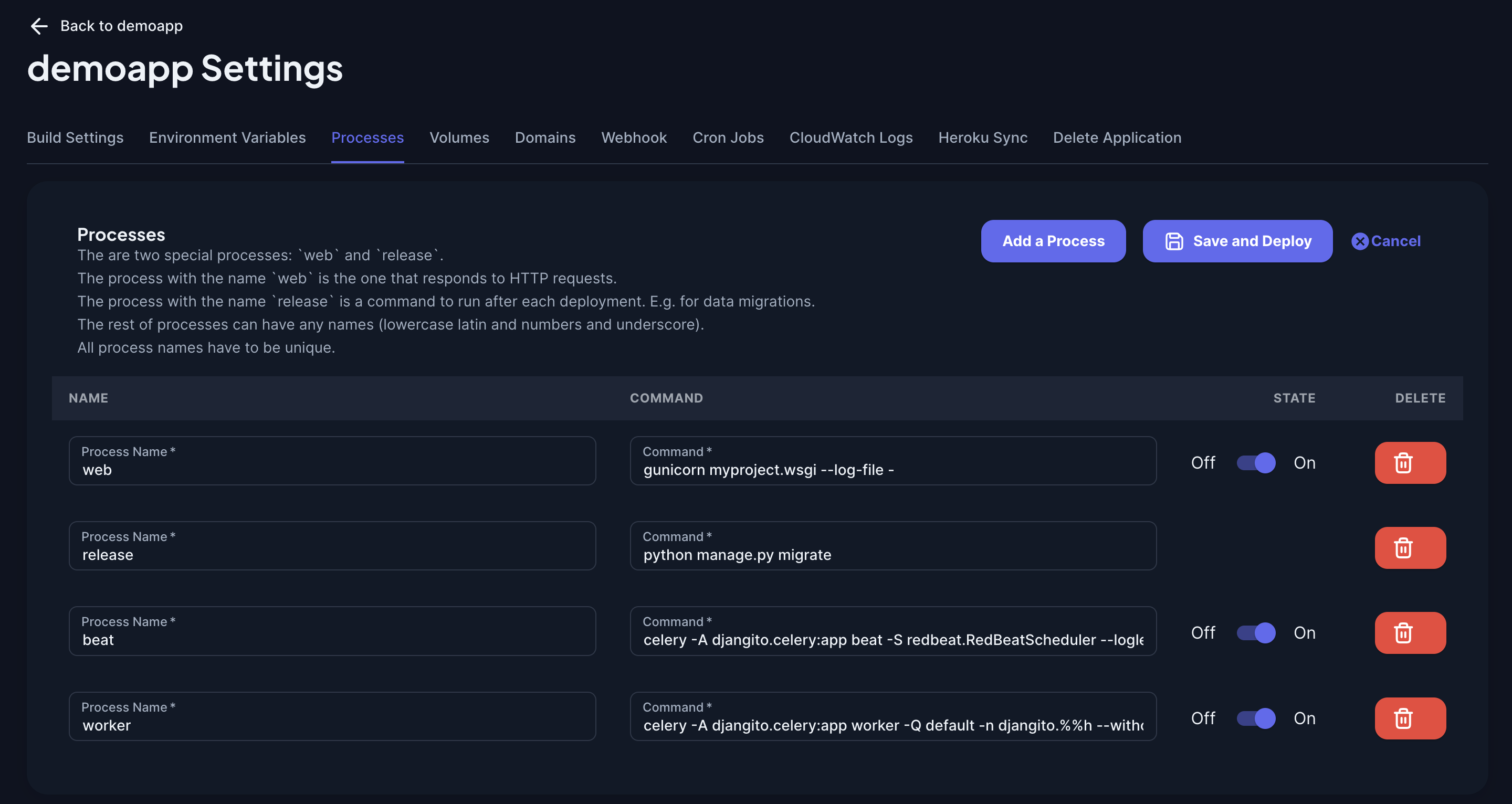
After you have specified your processes, hit "Save and Deploy" button.
Managing Processes in Cluster Mode
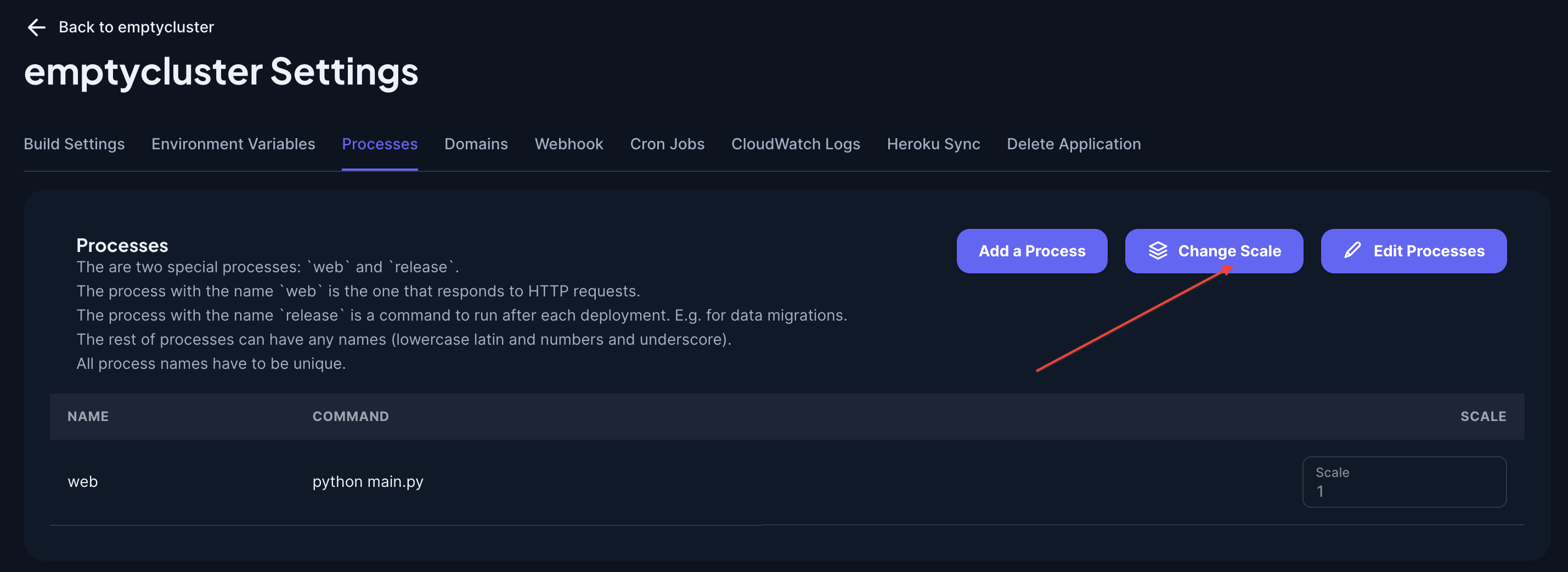
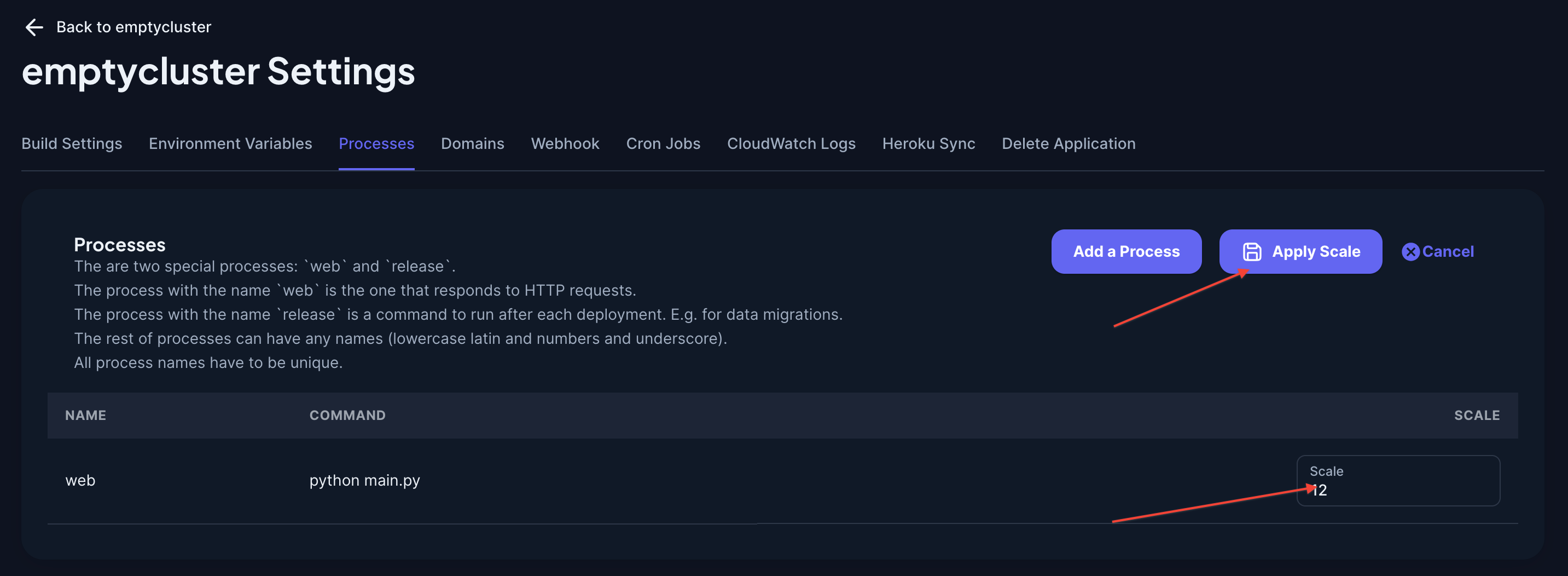
Cluster mode instead of the On/Off toggle offers to specify the scale. Scale is the number of replicas that are running for this process.
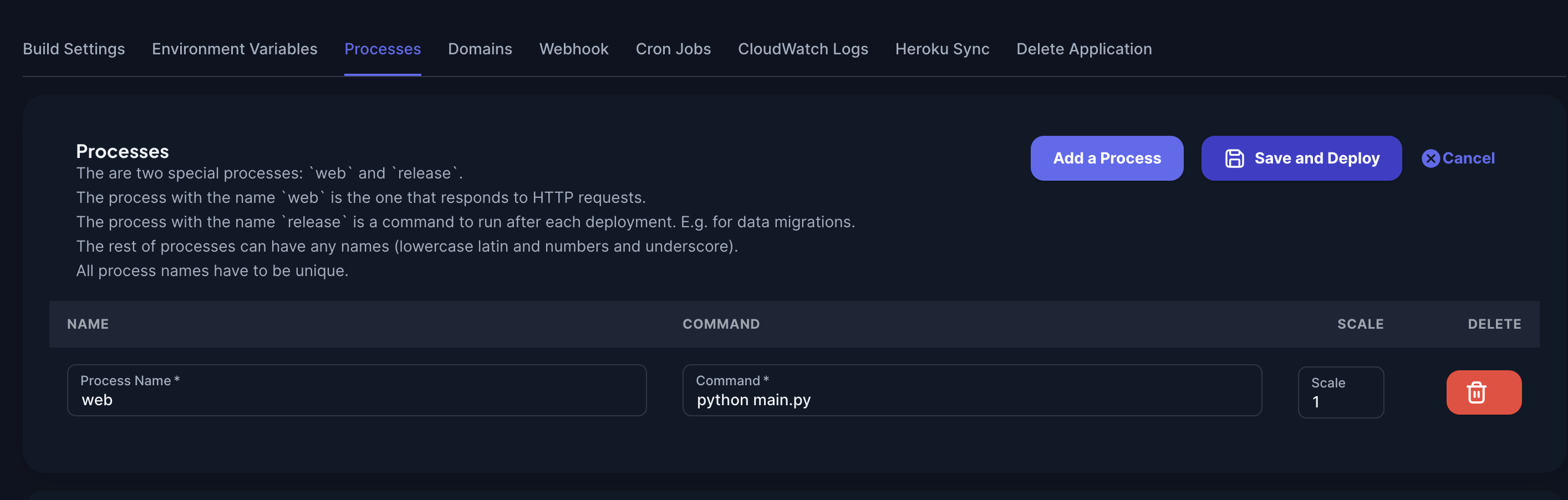
When you only want to change the scale for an existing process, instead of editing processes, click on "Change Scale" button and change the scale to the desired value and then "Apply Scale".
Be aware that the page will not refresh right away with fresh statistics — it might take 10-30 seconds to pull and display the fresh data.
Migration from the Procfile
If your app used the Procfile before, your processes will stay as they were last specified in the Procfile, but it won't be updating anymore. To change your processes you need to use the dashboard now.